- Help Center
- Getting started
Connect your AI tools (MCP)
Use DealSlide with your favorite AI tools like Claude and ChatGPT through MCP.
On this page
MCP is a standard way to connect an AI tool to another app. Once you connect DealSlide, you can ask your AI tool about businesses for sale, and it looks up real listings instead of guessing.
It works with chat assistants like ChatGPT, coding tools like Claude Code, and personal agents, as long as they support MCP and let you log in to DealSlide in a browser.
You need a DealSlide account. Free and Pro get the same tools and listings, and Pro includes more requests per day.
What your AI tool can do
- Search live and pending listings with the same filters as the site
- Read a listing's full description, price history, and timeline
- Find similar listings
- Find recent price cuts and listings back on the market
- List the marketplaces and brokers we cover
- Add listings to your watchlist and read it back
- Save a search and check it for new matches
Saving a search turns on a daily email alert. Your AI tool can't save more once your account has 25 saved searches.
At this time, your AI tool can't remove anything. To remove a watched listing or a saved search, use the site.
Your AI tool can't search sold or archived listings. Those stay on the site, where we can explain what the data means, and they're for Pro members. A watched listing that left the market shows only its status and when we recorded it.
Things to ask
- "Find SaaS businesses under $500k with at least $100k in annual profit."
- "Which content sites had a price cut in the last week?"
- "What came back on the market this month?"
- "Show me the full history of this listing and find similar ones."
- "What changed on my watchlist?"
- "Save this as a search and email me new matches."
- "Which marketplaces does DealSlide cover?"
Add DealSlide to your AI tool
Click your AI tool below and follow its steps in order. When a step shows a web address, click Copy next to it, then paste it into your AI tool. Each one has its own word for this connection, and its menus can change.
Claude (connector)
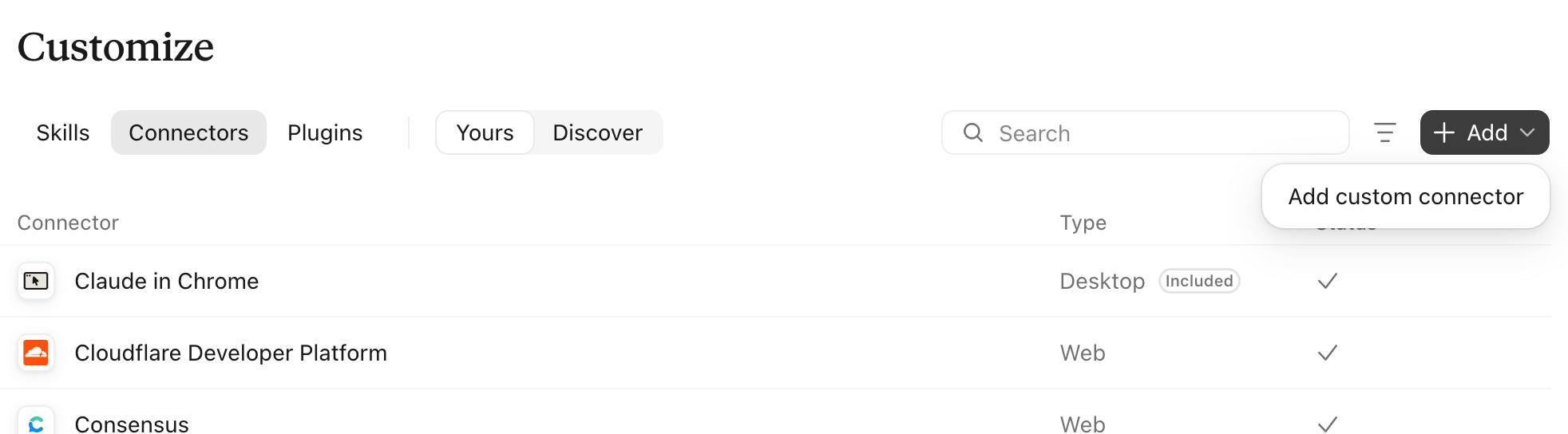
Open Claude and go to Customize in the sidebar, then select Connectors.
Click + Add, then Add custom connector.
In the first box for name, type DealSlide.
In the second box, paste this address:
https://dealslide.com/api/mcp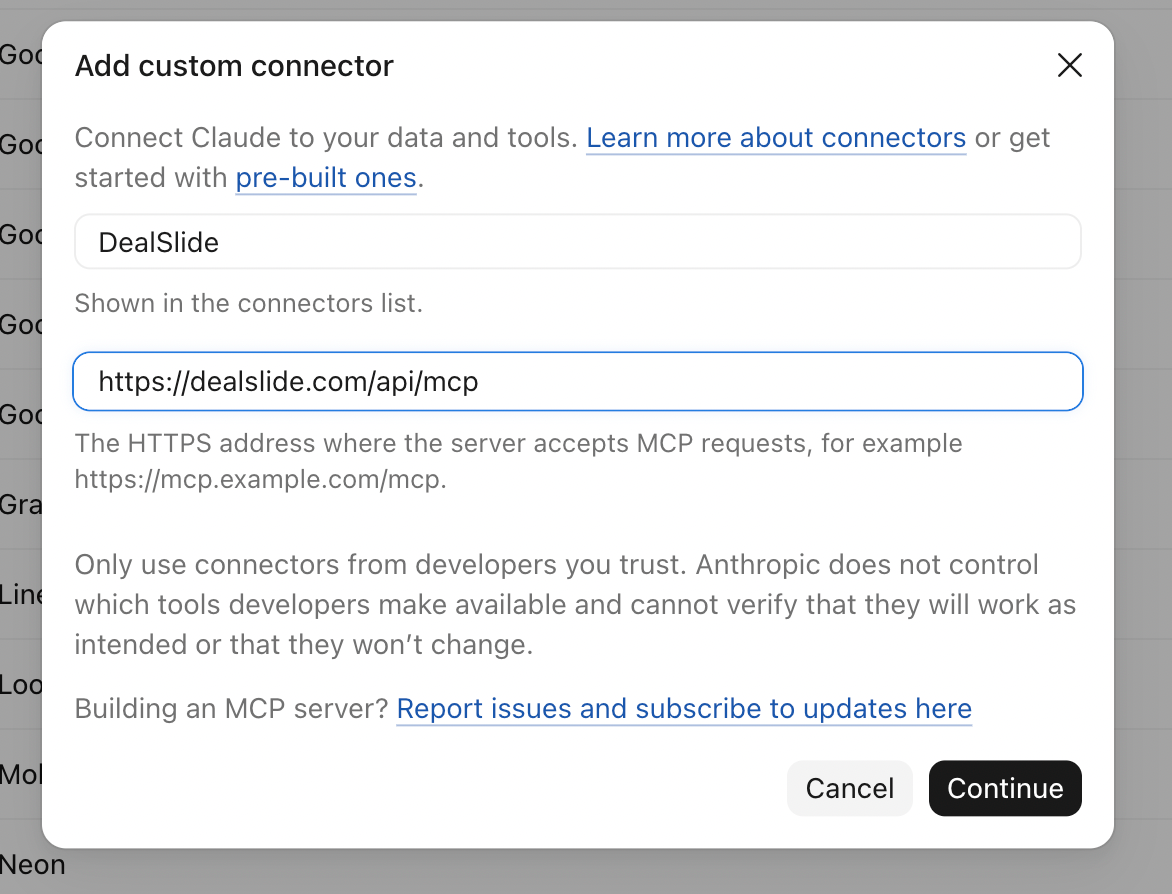
Click Continue.
Leave the choices as they are, with Sign in now and Use Claude's published identity selected.
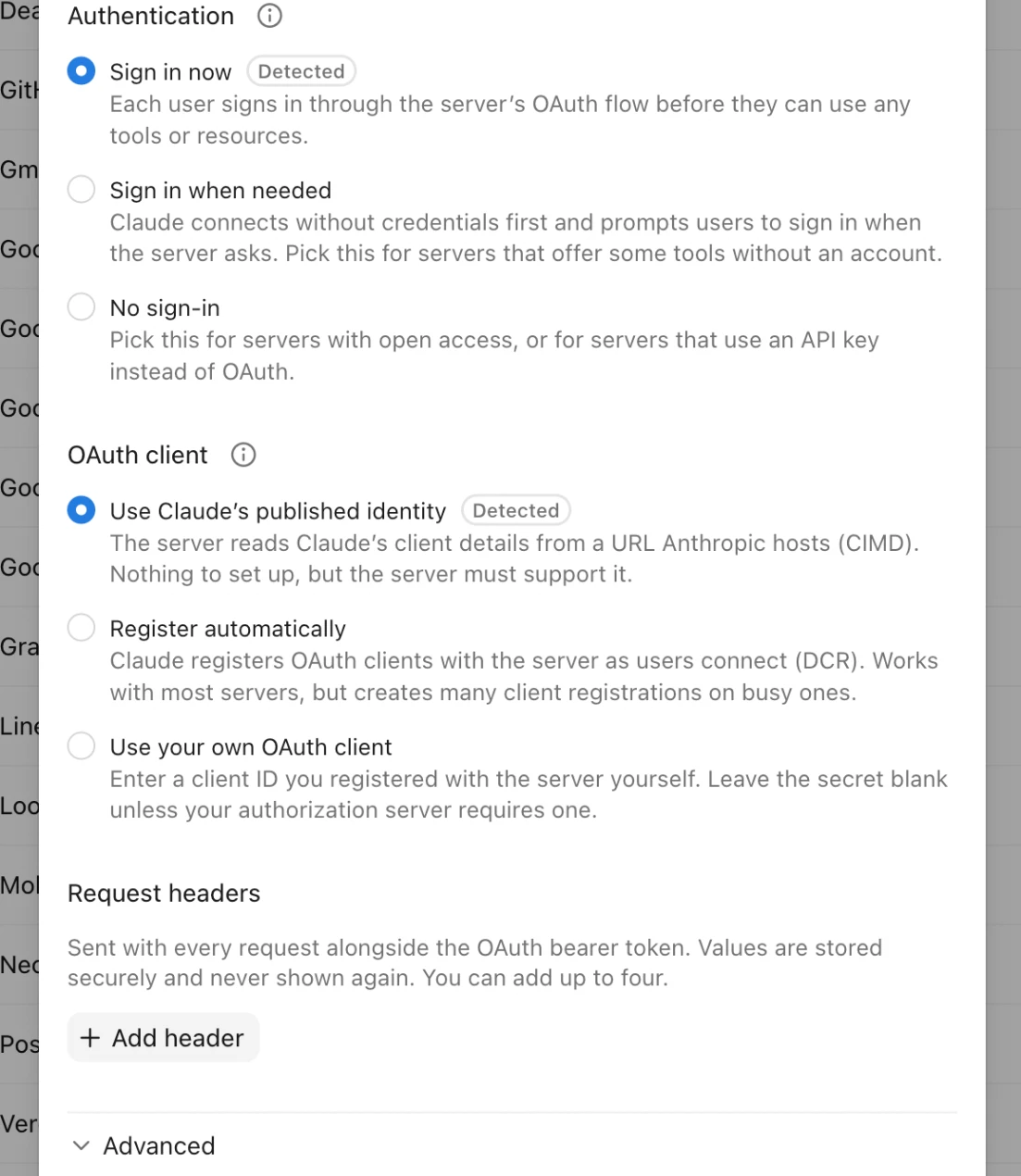
Scroll to the bottom and click Add.
Claude says "You're not connected to DealSlide yet." Click Connect.
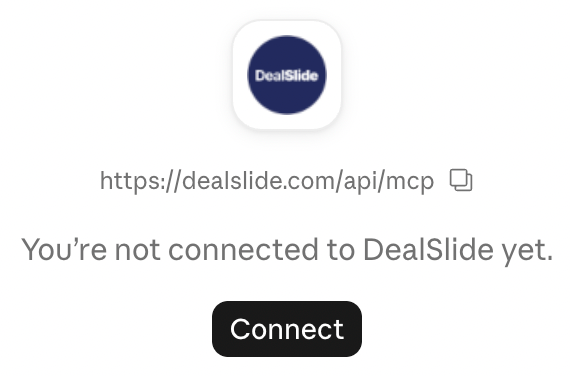
The DealSlide website opens. Log in if asked, then click Allow. This sends you back to Claude.
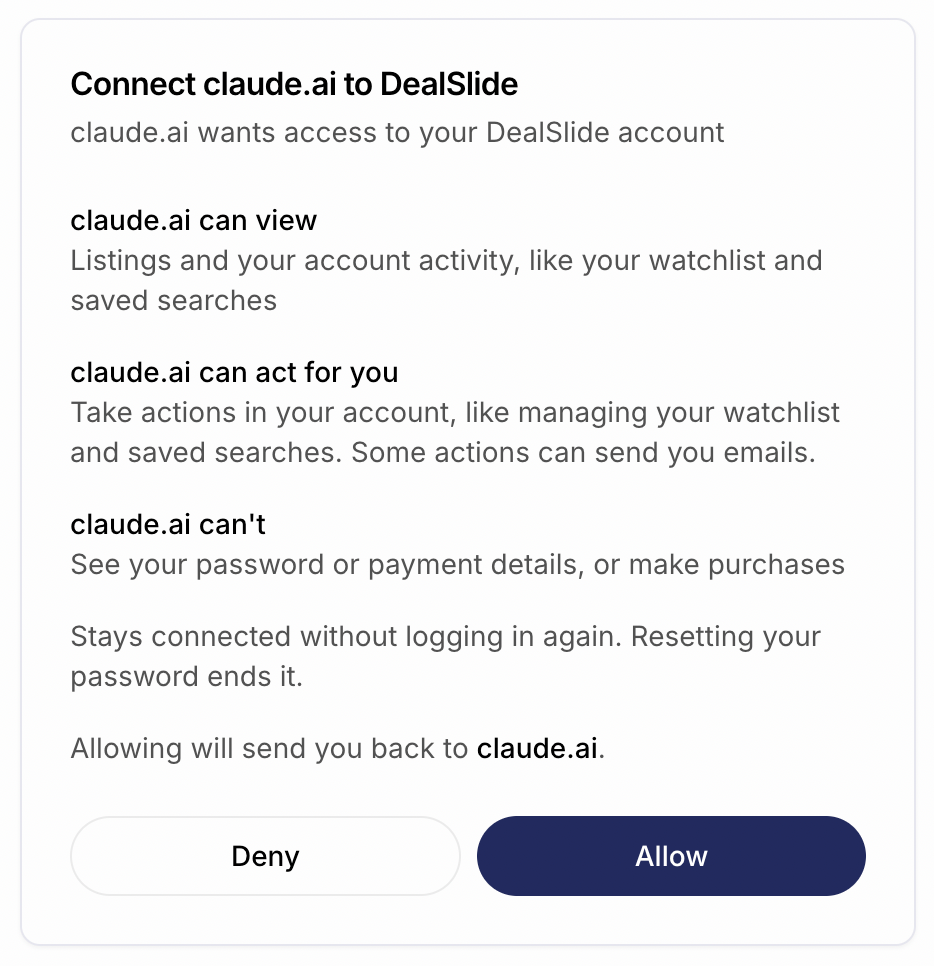
Claude now shows DealSlide with a list of its tools. Each tool starts on Needs approval, so Claude asks you before using it. You can change a tool to Always allow so Claude stops asking, or Blocked so Claude can't use it.
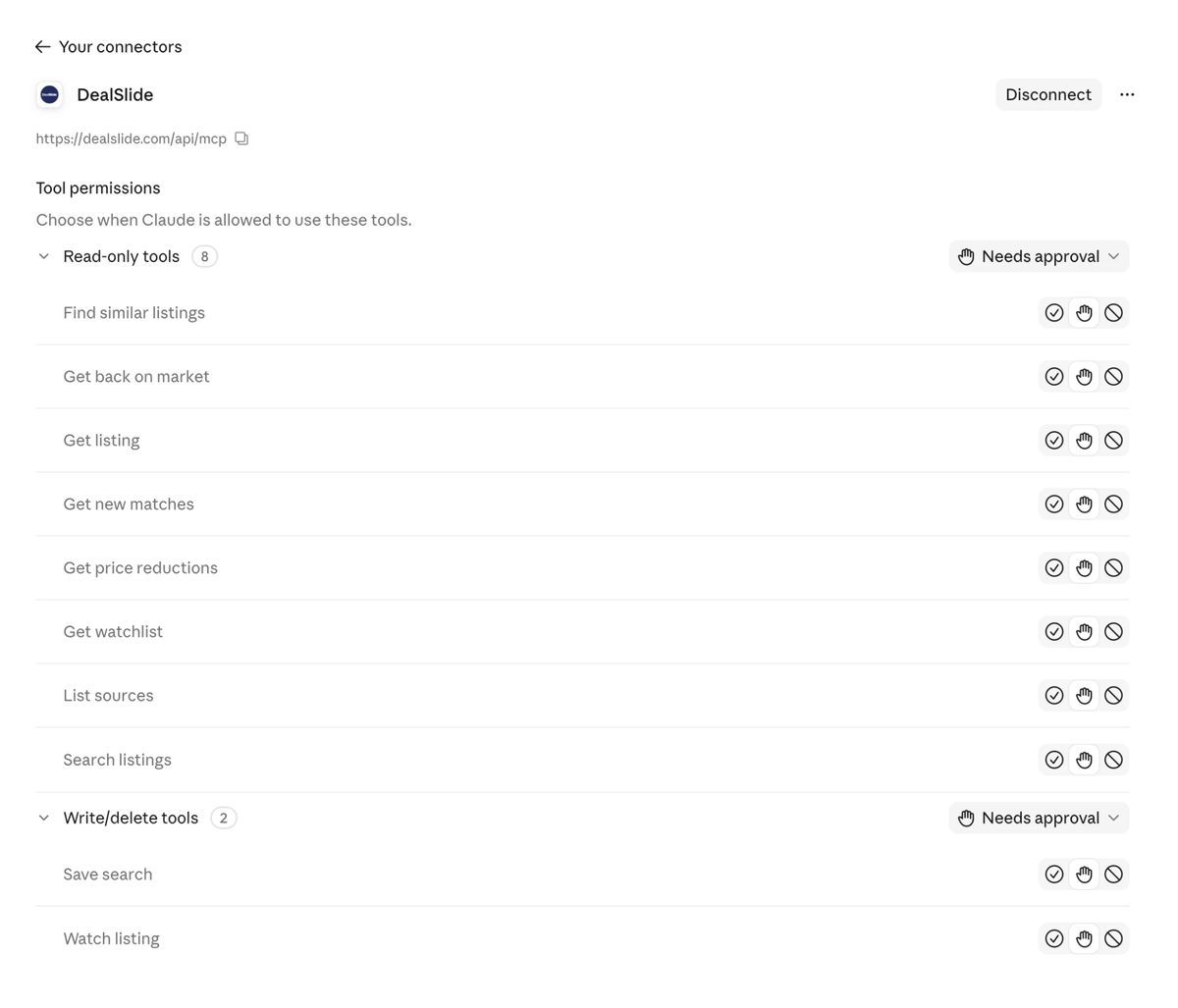
In any new chat, you can now ask Claude to use the DealSlide connector to interact with your account to find business listings, check for new saved search matches, watch listings, and more.
These steps work on the Claude website and in the desktop app.
On a Team or Enterprise plan, an owner adds DealSlide under Organization settings, then Connectors. Each member then clicks Connect.
Get new tools or remove DealSlide
Claude doesn't pick up new DealSlide tools by itself until we're listed in the official directory (soon). When we announce new tools or updates, go to Customize, then Connectors, and click DealSlide. On the screen with your tool permissions, click the three dots in the top right, then click Refresh tools list.
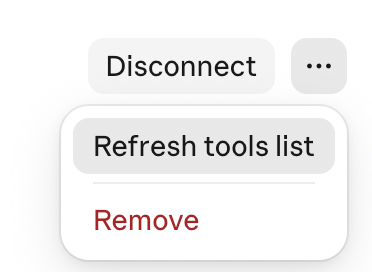
To stop using DealSlide, click Disconnect. To take it off your list, click the three dots, then Remove.
ChatGPT (plugin)
Use ChatGPT in a web browser, not the phone app. Whether you can add DealSlide depends on your ChatGPT plan.
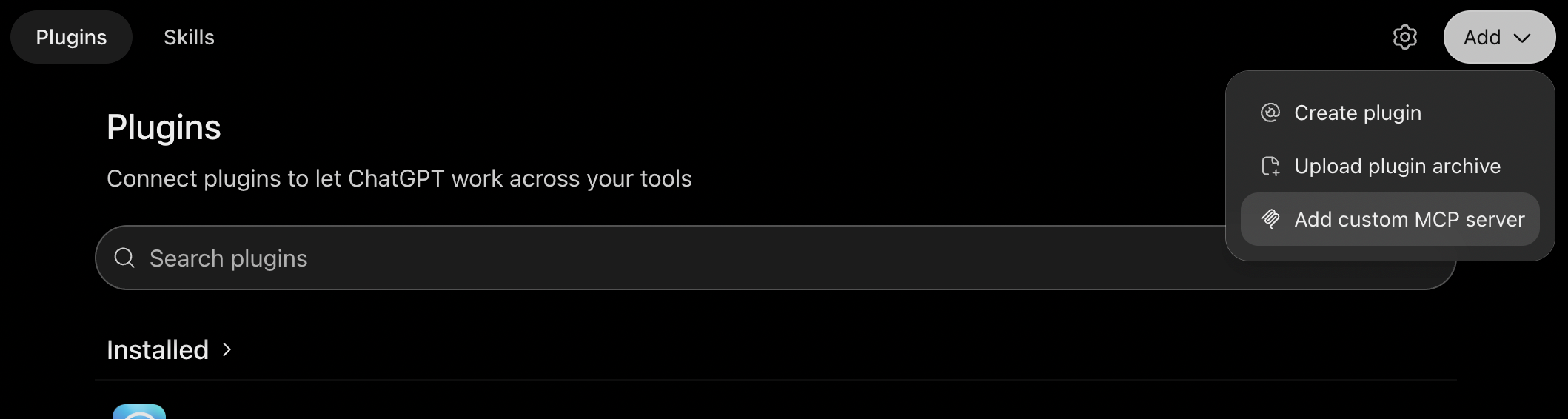
Go to Plugins, click Add, then click Add custom MCP server.
In the name box, type DealSlide. Optionally, save this image and use it for the icon.

In the URL box, paste this address:
https://dealslide.com/api/mcpLeave or set authentication to OAuth.
Tick I understand and want to continue.
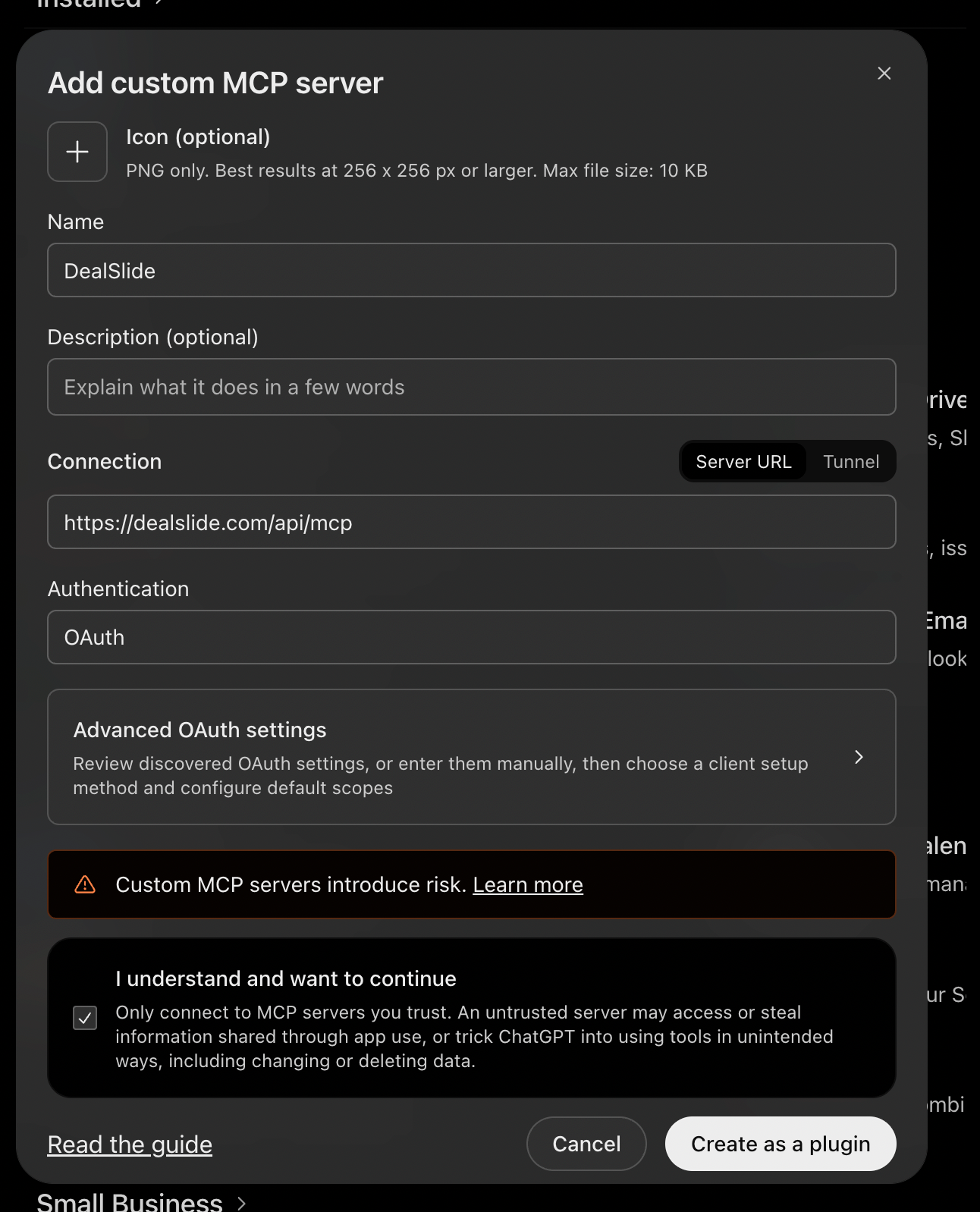
Click Create as a plugin.
Click Connect DealSlide.
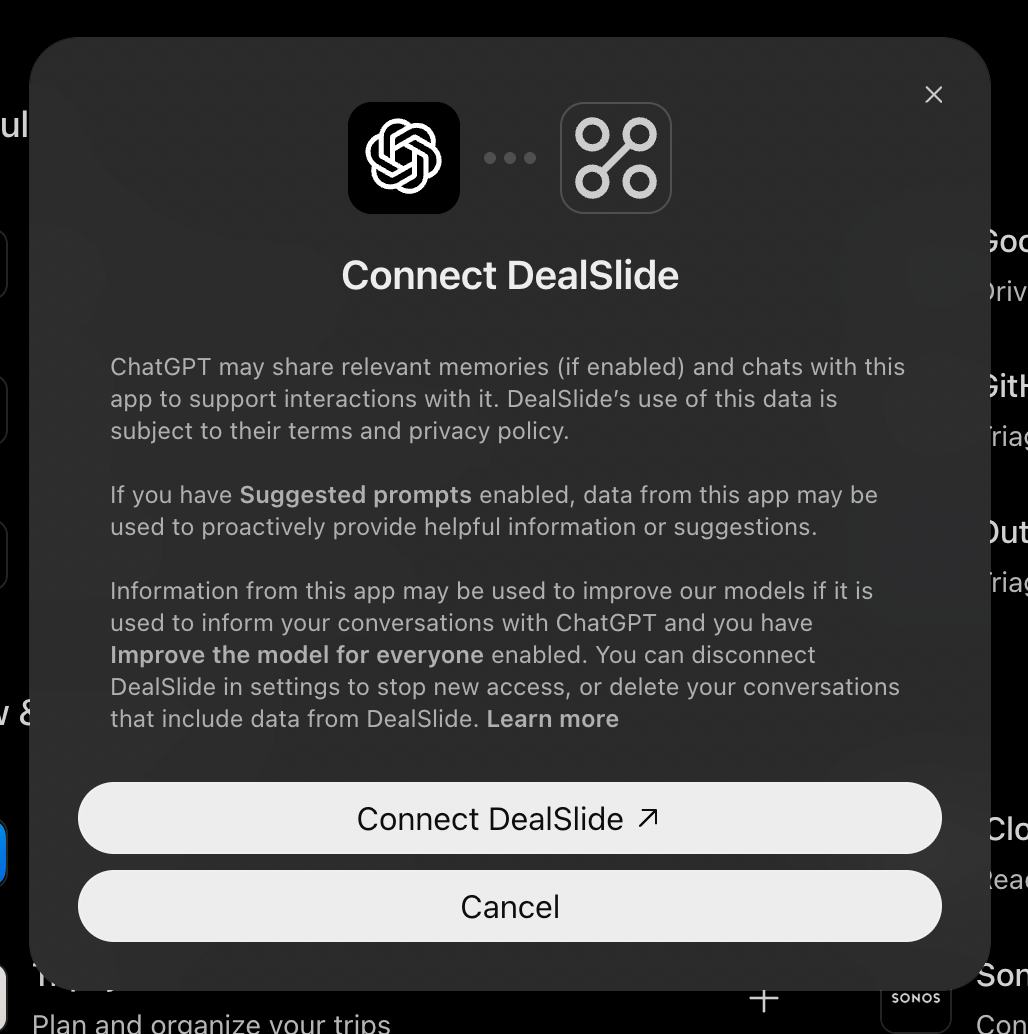
When the DealSlide page opens, log in if asked, then click Allow.
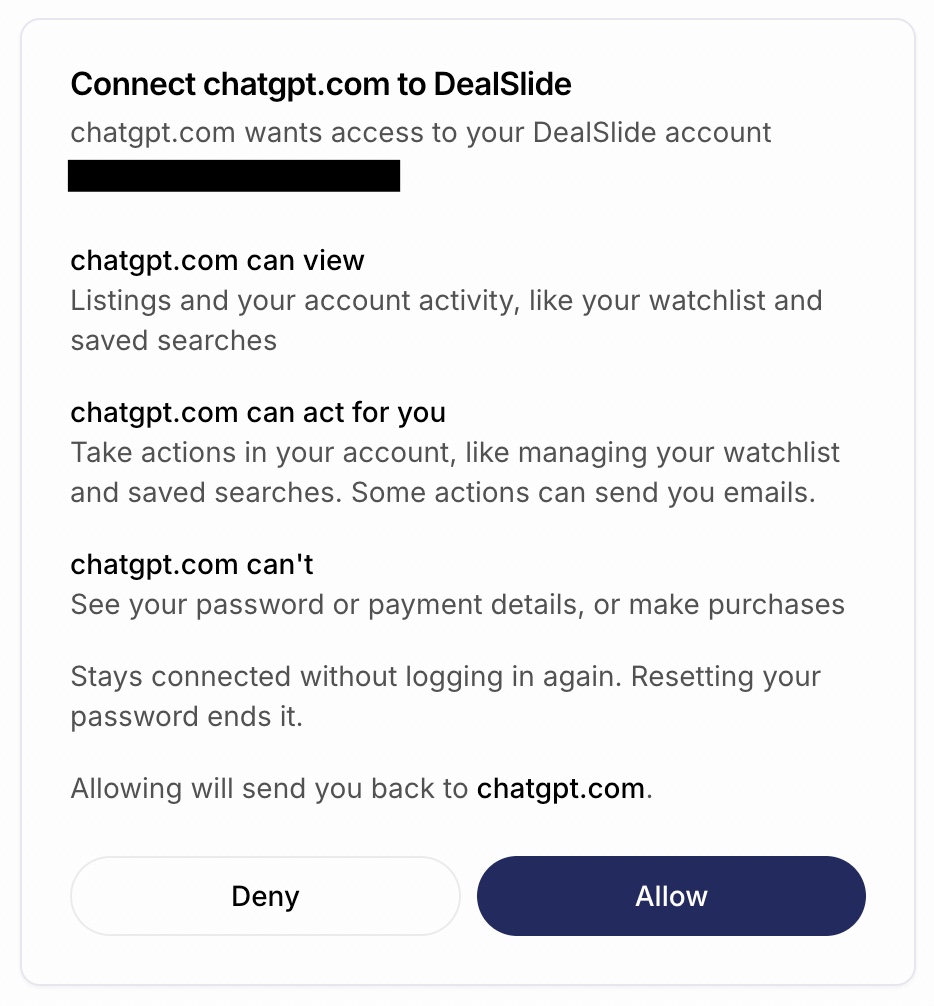
In a new chat, type
@and pick DealSlide to interact with your account to find business listings, check for new saved search matches, watch listings, and more.
Get new tools or remove DealSlide
ChatGPT doesn't pick up new DealSlide tools by itself until we're listed in the official directory (soon). When we announce new tools or updates, go to Plugins, then DealSlide, and click Manage. At the bottom of the manage screen you can Refresh tools.

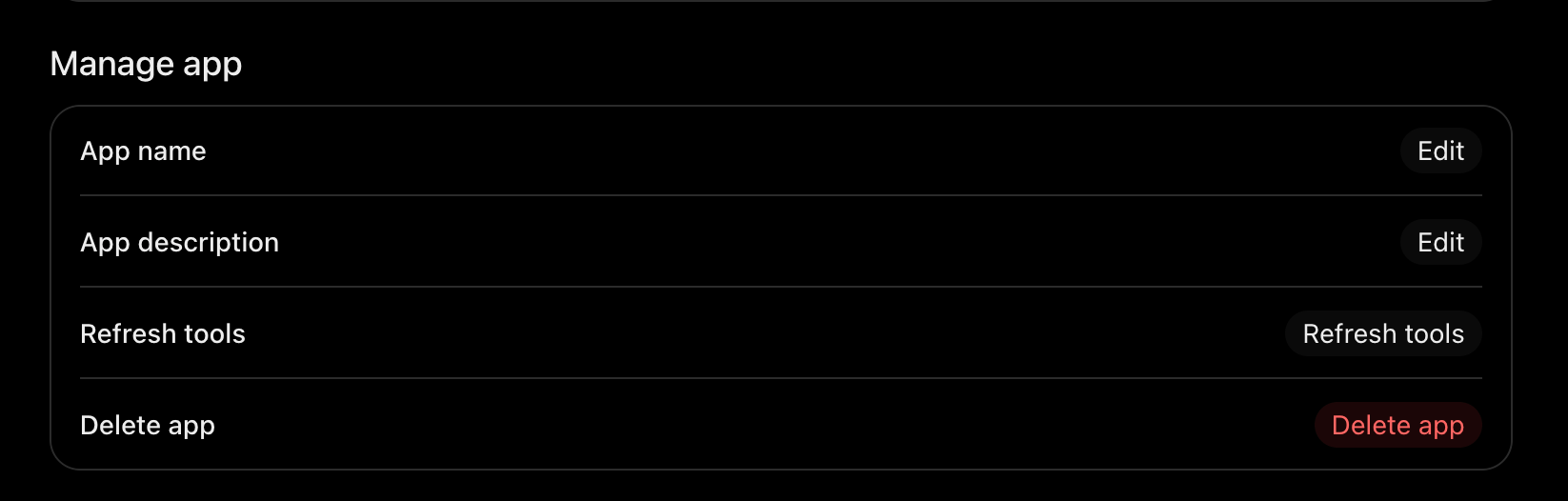
To stop using DealSlide, click Delete app from the Manage screen.
Other AI tools
Other AI tools and frameworks that support MCP often ask for the same things. Look for a place to add a custom connector or MCP server, then:
Name the connection DealSlide.
Paste this address as the URL:
https://dealslide.com/api/mcpFollow the prompts until the DealSlide page opens. If no browser opens, look for a login link from your AI tool and open it.
Log in if asked, then click Allow.
Limits
If your AI tool says you've reached the daily limit, it resets at 00:00 UTC. Pro plan members get 20x the MCP tool call usage compared to free. Learn more
Disconnect
To end every AI tool's connection at once, reset your password. An AI tool can keep access for up to 15 minutes after that.
Still need help?
Send us a message and we'll follow up by email as needed.